
You know that sinking feeling when you’re staring at your current hosting dashboard, watching your site load like it’s stuck in molasses? Yeah, I’ve been there.
And if you’re thinking about moving to Cloudways but the whole migration thing sounds like a nightmare… take a breath. Because the Cloudways WordPress Migrator is about to make your life ridiculously easy.
Here’s the thing most people don’t tell you about switching hosts: it doesn’t have to be complicated. Sure, there are horror stories out there. Sites breaking mid-migration. Database errors. Lost images. SEO rankings tanking overnight.
But that’s the old way of doing things.
Let me walk you through exactly how the Cloudways WordPress Migrator works, why you might need it, and how to use it without breaking a sweat. This isn’t one of those dry technical manuals… just real talk from someone who’s actually done this.
Why You Even Need a WordPress Migrator Plugin
Picture this.
You’re running a WordPress site on some budget hosting provider. Things were fine at first. But now? Your site’s slower than a three-legged turtle. Customer support takes three days to answer tickets. And every time traffic spikes, your site goes down.
Sound familiar?
Moving your WordPress site to a new host used to mean hours of FTP uploads, database exports, and praying nothing breaks. You’d need to manually transfer files, update URLs, reconfigure settings… it was a mess.
The Cloudways WordPress Migrator changes all that.
Think of it like hiring professional movers instead of doing everything yourself. You give them the keys (your SFTP details), tell them where you’re going (your Cloudways server), and they handle the heavy lifting. Your themes stay intact. Your plugins work. Your media files transfer perfectly.
And the best part? It’s completely free.
No hidden fees. No “upgrade to premium for actual functionality” nonsense. Just a solid migration tool that actually works.
How to Use Cloudways WordPress Migrator Plugin?
WordPress Migration — Install WordPress Migrator Plugin
Next, you need to install the Cloudways WordPress Migrator Plugin on your existing WordPress application hosted on another provider. Here’s how you can do it.
1. Visit your WordPress admin panel and Log In with your credentials.

2. Select Plugins.
3. Click Add New.

4. Next, search for Cloudways WordPress Migrator Plugin.
5. Click Install Now.

6. Once the plugin is installed, click Activate.



WordPress Migration — Initiate Migration
Next, you will initiate the migration process after entering the following details:
- Enter your email address.
- Next, agree to the terms & conditions and privacy policy.
- Click Migrate.
Here, you need to enter the following information in the form to initiate the migration:
4. Enter your Destination Site URL. This is the URL of your application that you launched on Cloudways in the first step.
5. Enter your SFTP Host/Server Address. This is your Cloudways server’s IP address.
6. Enter your Database Name.
How to Find this Information?
To find your application information, follow these steps:
- From the top menu bar, open Servers.
- Then, choose the server where your desired application is deployed.
3. Next, click www.
4. Choose your application’s name.
Here, you will find your
(4) Destination Application URL,
(5) SFTP Host/Server Address (IP address), and
(6) Database Name.
7. Next, enter your SFTP Username. Your SFTP username is your Master username. 8. Enter your SFTP Password. This is your master user’s password.
9. Under “HTTP Auth enabled?”, select No as we have not set up any password to visit the Cloudways-hosted application. If your Cloudways-hosted site is restricted and password-protected, select Yes and enter the username and password.
10. Under “Any root directories you want to migrate?”, select Yes if you also want to migrate your custom non-WordPress directories present in the public_html directory. Else, select No if you don’t wish to migrate your custom directories.
11. Under “Is this site protected?”, select No if your current WordPress website on another host is not restricted and is not password-protected. If it is password-protected, then select Yes and enter the username and password.
12. Finally, click Migrate.
How to Find SFTP Related Information?
To find SFTP username and password, follow these steps:
- From the top menu bar, open Servers.
- Then, choose and click the server where your desired application is deployed.
Here, you will find your
(7) SFTP Username and
(8) SFTP Password.
That’s it! The migration has successfully begun. The migration time is based upon the size of the data being migrated.
WordPress Migration — Test Your Migrated Site
Once the migration is completed, you can test your site by clicking Go to Cloudways or by simply visiting your Cloudways-hosted application. Please note that your Cloudways-hosted application is going to have new WP-admin credentials available on the Cloudways Platform.
What is Cloudways?
Cloudways provides users with an easy platform to deploy websites and apps on the cloud quickly, providing stability for business or personal website hosting needs. It also offers more control over the resources utilized by websites compared to other hosting providers.
The platform allows custom settings of servers through the configuration of droplets on DigitalOcean & Vultr along with SSL certs support through its panel.
With Server management features integrated into one section, Cloudways has made managing multiple servers very simple via its user-friendly interface that does not require technical knowledge at all!
Cloudways provides you a choice of 16 server locations from where you can choose one for your application or website. You can select the location based on your needs, whether it is for monitoring the speed at which packets are sent from your site or to avoid an attack on your servers. Additional features offered by Cloudways include:
– SSH Access via Terminal with SFTP support
– App Firewall with WAF & Brute Force Detection
– Cron Job Management
– Built-in CDN
– Latest version of PHP 7 with HHVM Support
– HTTP/2 Support
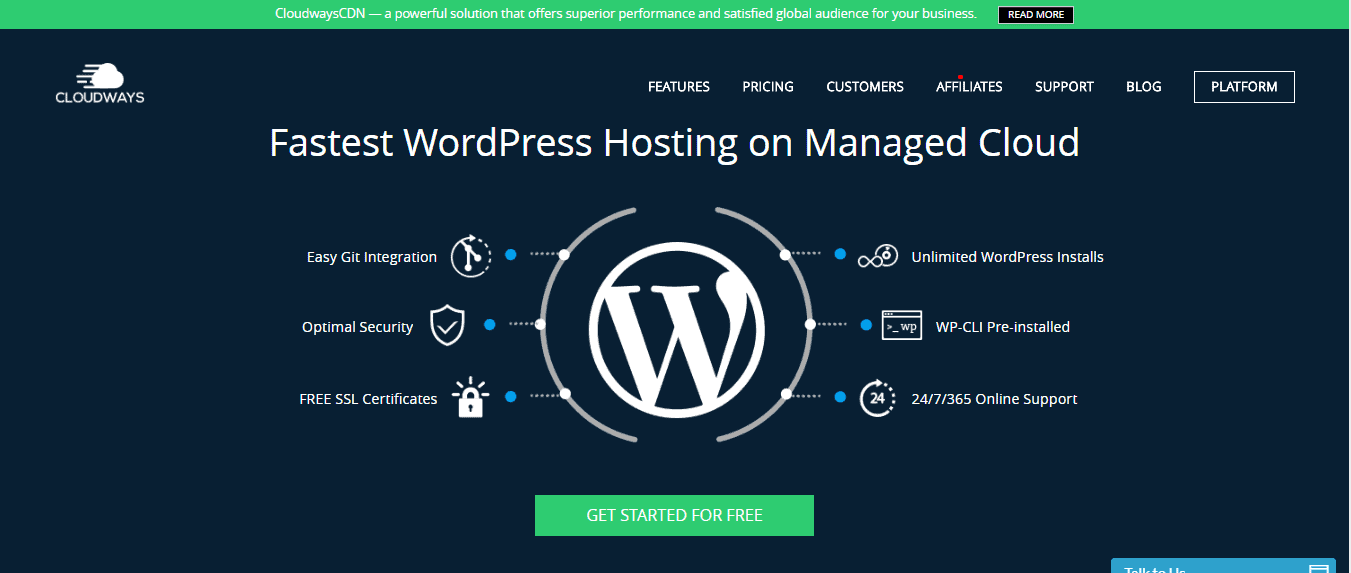
What is WordPress?
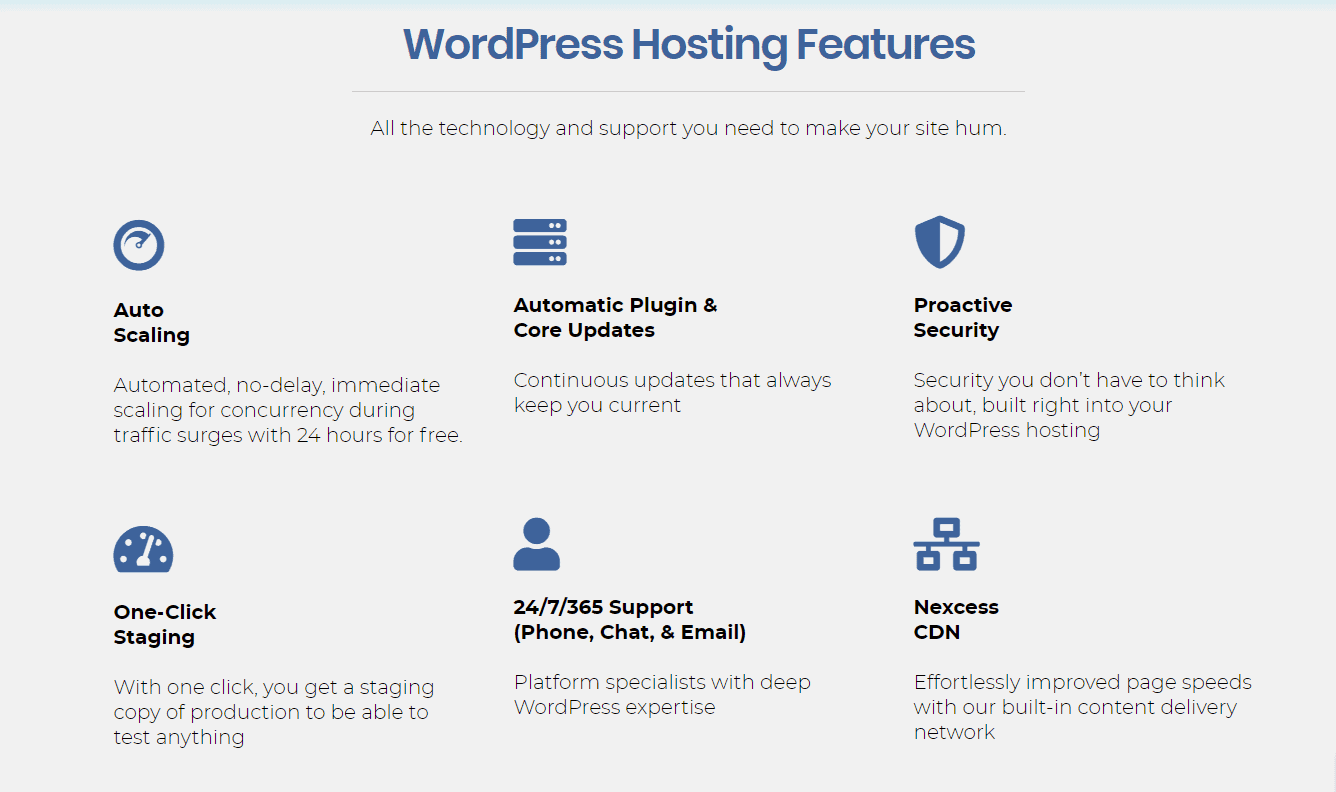
If you’re not familiar with WordPress, it can appear a little daunting at first. In this post, we’ll try to clear up some of the confusion around WordPress and explain what it is, why people use it and more.
WordPress is a free and open-source content management system (CMS) based on PHP and MySQL, which means you can install it on your own web host. You can then create and publish your own content – text, photos, videos – in the same way that you might use Facebook or Twitter to do the same thing.
Why WordPress?
So why would people choose WordPress when there are so many other types of website available to them? Well, the main reason is simplicity. Here’s a few reasons why:
It’s free : There really is no good reason not to choose WordPress if all you want to do is create a straightforward blog or website and don’t have any specific technical requirements (for example: storing items on your site for later retrieval).
This also means that there’s no up-front cost involved if you want to make a small change or fix a big error.
You only pay if you need more: If you want features that don’t come as standard with WordPress, then that’s okay – there are plenty of options for paid-for themes and plugins which will do exactly what you’re looking for.
However, many people can run their website perfectly well without those extras – so they can save money by sticking to the free theme and plugins available.
It’s open-source: This means anyone can contribute to its development and share their ideas about how it could be improved. Most content management systems aren’t like this (for example Magento is owned solely by one company).
There are thousands of tutorials online: This might not sound like much of an advantage – after all, plenty of content management systems has their own documentation.
But straight away you can find hundreds of tutorials on how to get the most out of WordPress – so you don’t need to sit around waiting for help if you get stuck. It’s also much easier to understand than other CMS’ because it’s not built with programmers in mind.
It’s well-supported: Behind the scenes, countless people are working hard to keep WordPress up-to-date and ensure that it works smoothly for everyone who uses it.
If you’re running a WordPress site, then this means that someone is always there when something goes wrong or your website seems slow or faulty in some way. There are many advantages to having web developers based close to home in the UK.
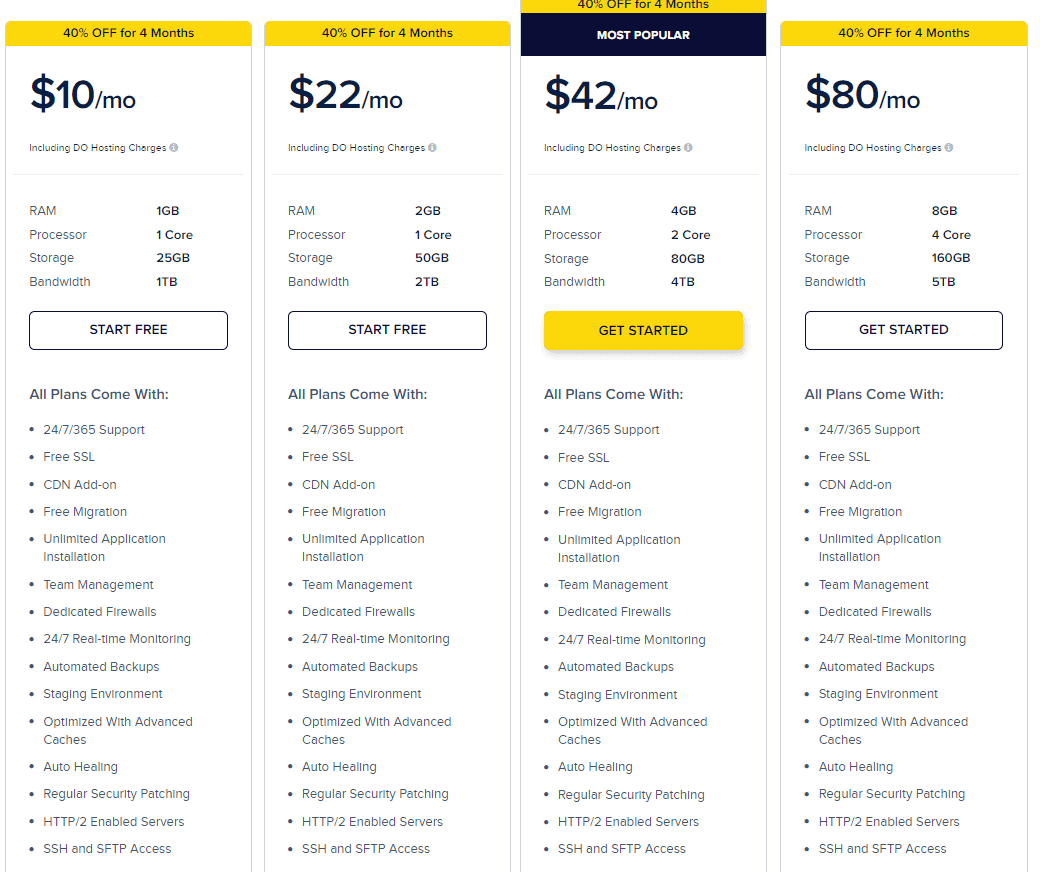
Cloudways Pricing: What You’ll Actually Pay
Let’s talk money for a minute.
One of the questions I get all the time is: “How much does Cloudways actually cost?”
It depends on which cloud provider you choose and what server size you need. But here’s the breakdown for 2026:
DigitalOcean Plans (Most Popular)
Entry Plan – $11/month
- 1GB RAM
- 1 Core Processor
- 25GB Storage
- 1TB Bandwidth
- Free SSL & Migration
- Perfect for small blogs or personal sites
Small Business Plan – $22/month
- 2GB RAM
- 1 Core Processor
- 50GB Storage
- 2TB Bandwidth
- Great for growing sites with steady traffic
Growing Site Plan – $42/month
- 4GB RAM
- 2 Core Processors
- 80GB Storage
- 4TB Bandwidth
- Optimized caching
- Ideal for high-traffic blogs or medium-sized stores
High Traffic Plan – $80/month
- 8GB RAM
- 4 Core Processors
- 160GB Storage
- 5TB Bandwidth
- Dedicated firewalls
- Built for serious traffic
Vultr High Frequency Plans
Starting at $16/month with similar specs to DigitalOcean but optimized for even faster performance. These servers use NVMe storage, which is noticeably quicker if you’re running database-heavy applications.
AWS & Google Cloud Plans
These start at around $37/month and scale up based on your needs. You’d only go this route if you need enterprise-level infrastructure or specific regional data centers.
Here’s the beautiful part: Cloudways uses a pay-as-you-go model. You’re charged hourly. So if you only run a server for 15 days, you only pay for 15 days. No annual contracts. No surprise renewal fees that triple after year one.
Quick Links
Conclusion: Cloudways WordPress Migrator 2026
Look, migrating a website used to be genuinely stressful. I’ve done it the manual way. I’ve stayed up until 3 AM troubleshooting database connection errors. I’ve accidentally broken live sites.
The Cloudways WordPress Migrator eliminates all of that. It’s free. It works. And it saves you hours of headache.
If you’re even remotely considering switching to Cloudways, just grab their free trial and test it out. Run a migration to their temporary URL. See how your site performs. Check the speed. Browse around.
Most people are blown away by the difference. And when you’re ready to go live? You already know exactly how to use the Cloudways WordPress Migrator plugin. Just follow the steps above, point your domain, and you’re done.
Your site deserves better hosting. Your visitors deserve faster load times. And you deserve to stop worrying about your server going down every other week. The Cloudways WordPress Migrator makes switching simple. Take advantage of it.
